Getting Started
Install GitQueue from GitHub Marketplace, configure your repository, and start managing PR merge lanes with a persistent overview comment.
Step 1: Install from GitHub Marketplace
GitQueue is available as a GitHub App. Install it from the GitHub Marketplace and authorize it for your repositories.
Installation Steps
- Navigate to the GitQueue app page on GitHub Marketplace
- Click "Install" or "Set up a plan"
- Choose which repositories you want GitQueue to access (all or specific repositories)
- Authorize the app with the necessary permissions
- Complete the installation process
GitHub Marketplace: Install from https://github.com/apps/gitqueue-app
Required Permissions
- • Read access to repository contents and metadata
- • Read and write access to pull requests
- • Read access to repository settings
Activation and entitlements: Installation starts an active 1-month free trial if there is no paid Marketplace plan yet. Queue processing requires an active account, and each plan limits both the number of active repositories and the number of active processing PRs per entitled repository.
Step 2: Create Configuration File (Optional)
GitQueue works out of the box with sensible defaults. If you want to customize behavior, create a configuration file in your repository.
Configuration File Location
Create .github/gitqueue.yml on your repository's default branch.
Available Options
# .github/gitqueue.yml
merge_method: merge # Options: merge, squash, rebase| Method | Description |
|---|---|
| merge | Creates a merge commit (default) |
| squash | Combines all commits into a single commit |
| rebase | Replays commits on top of base branch |
Important: GitQueue only reads configuration from your repository's default branch (usually main or master).
Step 3: Create Your First PR
Create a pull request as you normally would. GitQueue automatically detects it and adds one persistent overview comment.
Prerequisites
- PR must target your repository's default branch
- PR must not be in draft state
Note: PRs targeting non-default branches still get an overview comment, but queueing is disabled for those PRs.
GitQueue Overview Comment
Once your PR is created, GitQueue automatically adds an overview comment showing the PR's current state and lane eligibility.
What the overview comment always does
- • Reuses a single top-level GitQueue comment on the PR
- • Starts in a general mode with Command Help guidance
- • Includes the repository status page link
- • Includes a collapsed Activity section in both modes
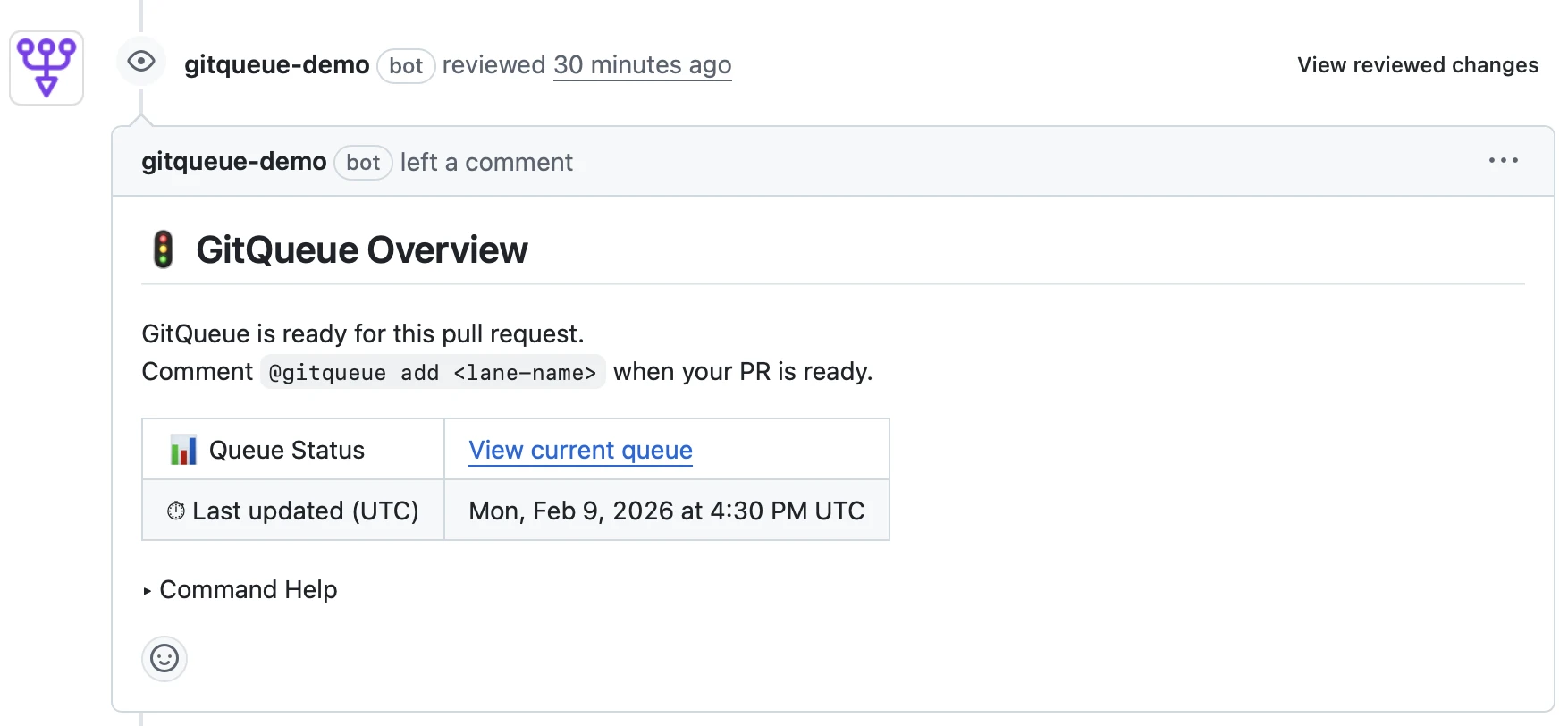
GitQueue overview comment showing PR is ready to be added to a lane
Step 4: Add PR to a Lane
Use a comment command to add your PR to a merge lane. /gitqueue add defaults to the lowest lane.
Basic Command
/gitqueue addUse /gitqueue add normal when the PR is already ready for a non-lowest lane.
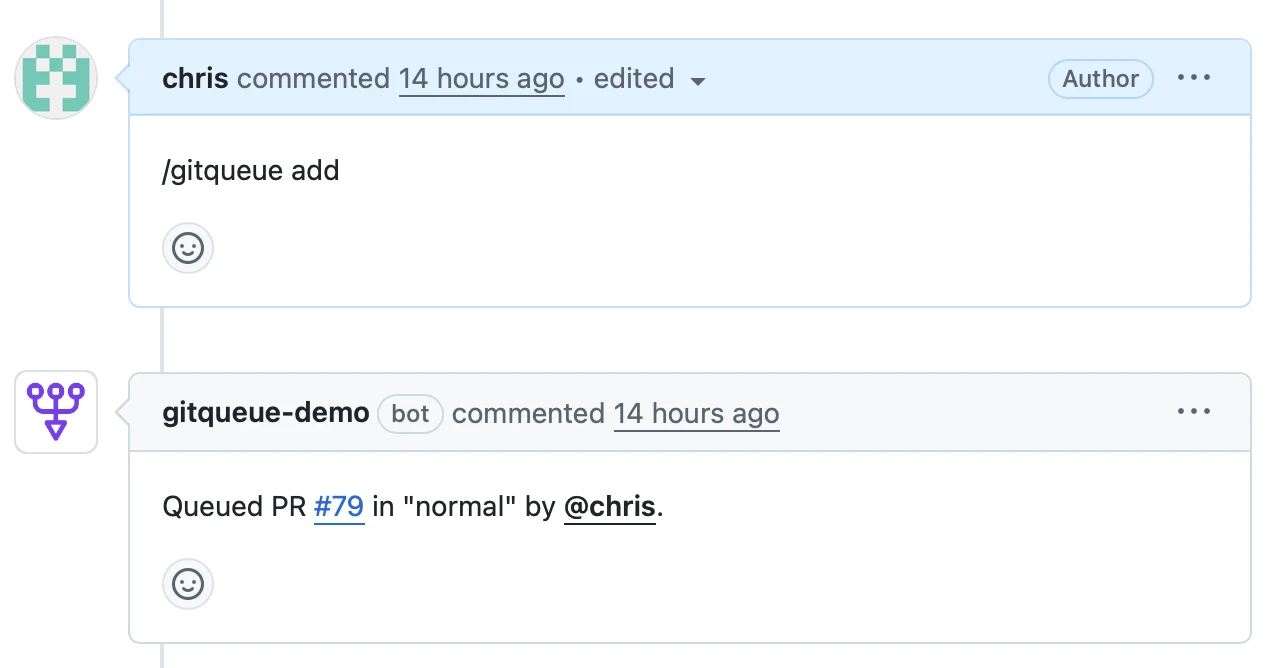
Comment with /gitqueue add or a lane-specific variant to join a merge lane
Available Lanes
| Command | Description | Access |
|---|---|---|
| /gitqueue add highest | Emergency fixes | Admin only |
| /gitqueue add high | High-priority changes | CODEOWNERS |
| /gitqueue add normal | Standard ready-to-merge work | Write access |
| /gitqueue add low | Lower priority | Write access |
| /gitqueue add lowest | Accepts PRs with pending or warming-up gate states | Write access |
Gate Requirements: To add a PR to highest, high, normal, or low lanes, Checks, Approval, and Freshness must all resolve to pass or warn. The lowest lane accepts pending, warn, or pass results while work is still settling. Draft PRs, blocked repositories, and invalid lane requests are rejected with explicit feedback. Approval is based on GitHub review state, including reviewDecision.
Queued mode stays minimal: after a successful add, the same overview comment switches to queued mode and shows the lane name, actor, enqueue time, the three gate states, the status-page link, and the Activity section. It does not show lane position or an "X of N" counter.
Step 5: Watch It Merge Automatically
GitQueue processes your PR automatically based on priority. When it reaches the front of its lane and all gates pass, it merges automatically.
Processing Flow
- GitQueue evaluates exactly three gates: Checks, Approval, and Freshness
- If Freshness is warn because the branch is behind, GitQueue updates it automatically and stops the current processing cycle
- If any gate is pending, GitQueue keeps the PR in place and retries on a later trigger
- When all three gates pass, GitQueue merges using the configured merge method
- If any gate fails with no pending or freshness-warn outcome, the PR moves to the end of its lane and GitQueue continues with other PRs
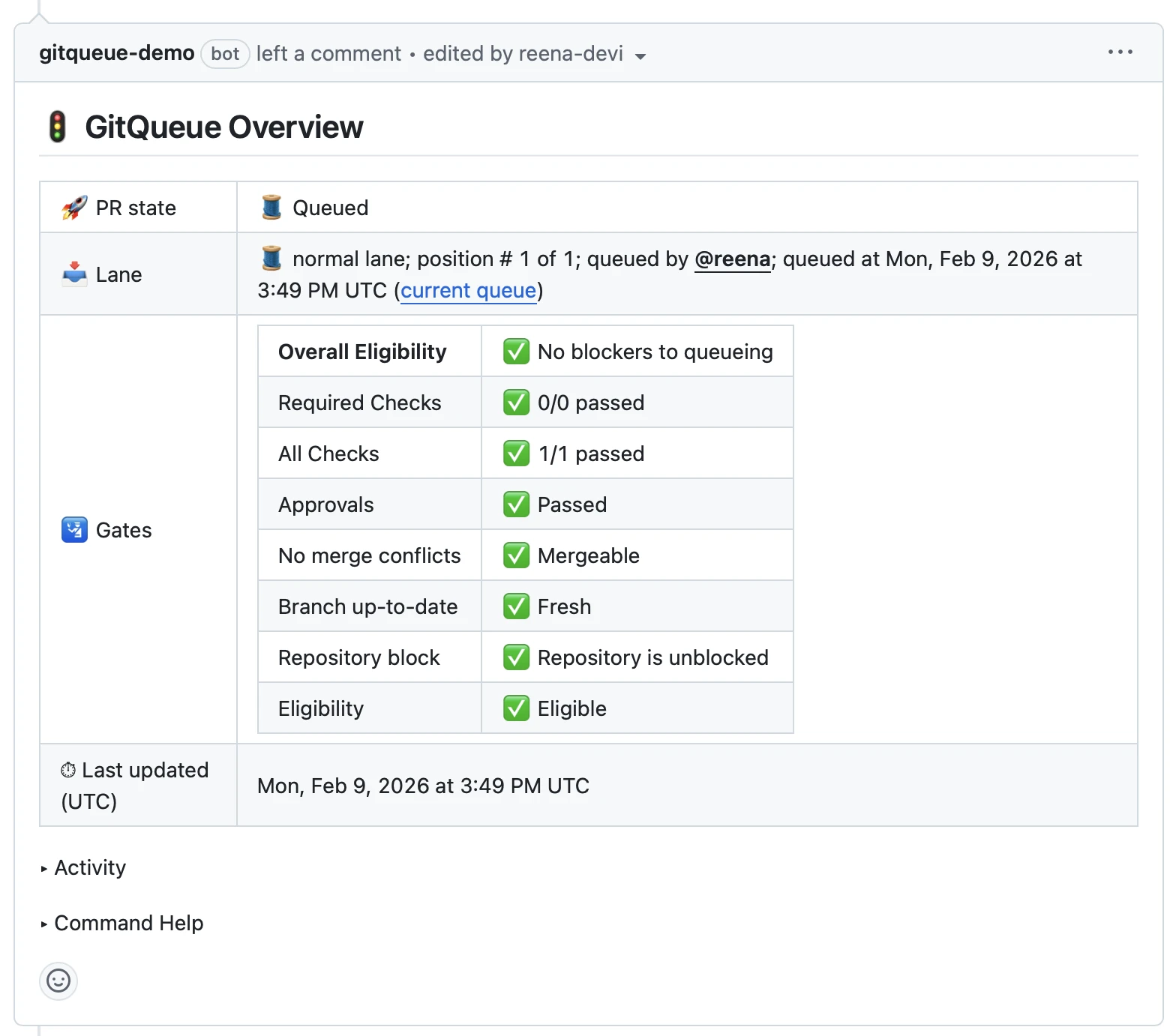
GitQueue updates the overview comment with current lane metadata, gate states, and activity
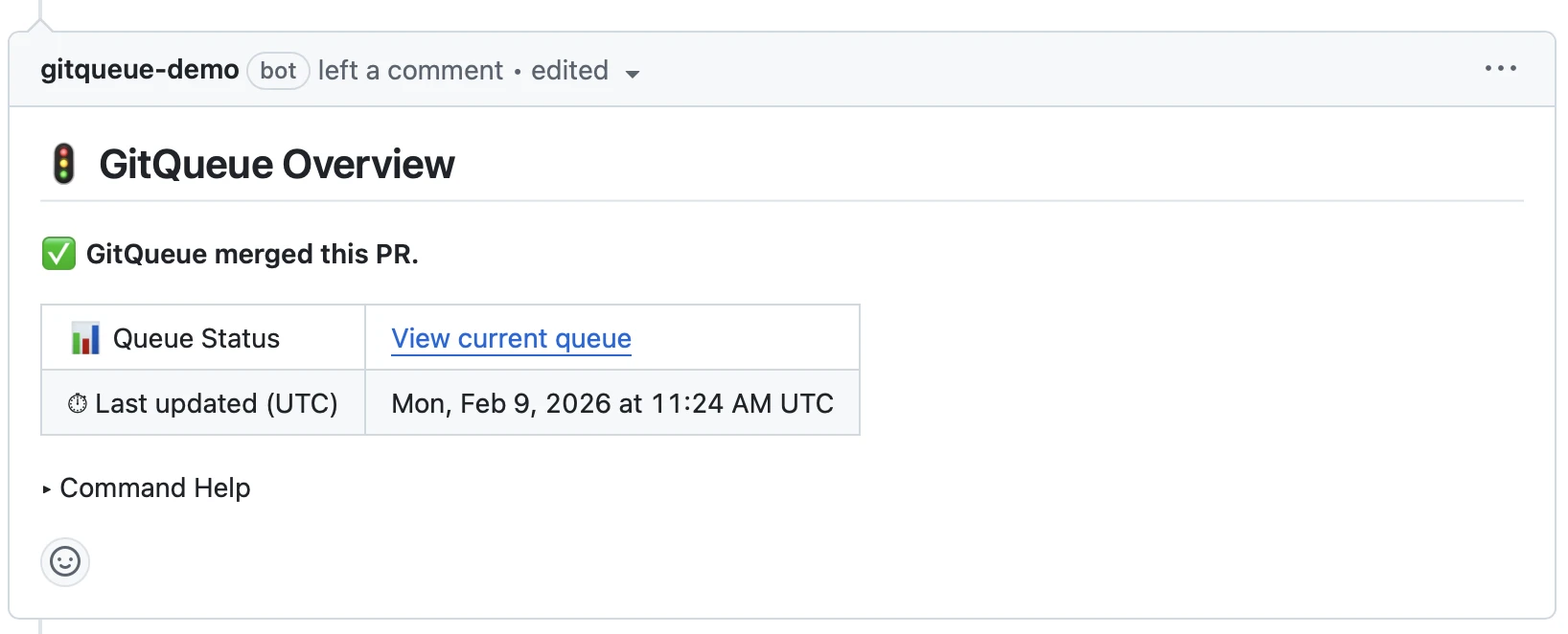
GitQueue confirms when your PR has been successfully merged